KENAX Translation Agency | Email US | Translation Resources | Translator Sitemap | Translation Services
KENAX Translation Agency | Email US | Translation
Resources | Translator Sitemap
| Translation Services
For translators in a big RUSH, you
can refer to our quick instructions below, or
the super fast instructions for little
tips once you get started. However, if
you will be translating a larger volume for us with this program, it is highly recommended
you peruse the other parts of this page, or at least quickly scan over as much as
possible, as it will probably save you a lot of time later on.
For customers who would like help
with the program, please email us directly.
Introduction - Why we use this program?
| One reason may be that we have
built up translation memory from previous translations, so we use it to lower the costs of
existing translations and help us remain more competitive. Or many times the customer
simply demands it. But most of the time, such a program is important for very large projects. Most large projects can have between 20 and 30% repetitions. This means that repetitions or near repetitions of many words, phrases and sentences are found elsewhere throughout the documents. |
|
We use a program to find these repetitions and we translate them before
starting the project. We also develop a dictionary list to translate before starting the
project. Once this first stage is completed, we then start preparing the individual
sections for the translators, usually smaller files of around 3,000 words each. These
smaller files are now already about 20 to 30% translated (pretranslated), and they have
the dictionary terms marked in red. Or those dictionary terms can already be translated
for you. This keeps everything much more consistent, increasing quality, reducing costs,
and allows for the project to be completed in a shorter period of time. Furthermore,
whether the original files are in Word, Excel, or some large website, they all get
imported into Transit, so that the translator always works within the same environment,
focusing only on the actual text and not on any complex formatting, speeding up the translation process
on that level as well. It is a win win win situation.
We and the customer save money, and the translator makes more, because they are paid for
words, phrases and sentences which are already translated for them, while they can
translate faster, because they do not have to worry about formatting issues but only
actual text.
Our version is very expensive, but the translator can work in the free
program, freely downloadable from
here.
There are special instructions
how to install Transit Termstar on Windows Vista
or Windows7.
To view and practice with a sample project, download one here.
[Note that Windows sometimes changes the .pxf file endings to .zip while downloading. The
.pxf is actually a zipped file, but Transit will not recognise a .zip ending, so you must
manually change it back before Receiving it.]
How to Operate the Program
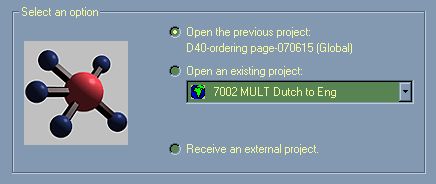
Once you install the Transit program, you can open one of the .pxf files to see how the translation environment looks like, simply by downloading one of the files and then selecting Project > Receive, and open the .pxf file you downloaded. Then go to File > Open > Language Pair. This should show you the Source text, the window you will be translating in, and the little window of suggested dictionary terms. To make your translation environment more comfortable, you can reorganise the subwindows, change the colours, and change many ways how you view things, and the program will remember your settings. More info on this below.
When you download your .pxf file, you should save it in your Transit directory, which should have automatically installed in your Program Files directory, so that you can quickly retrieve and open it.
Go to Project > Receive and import your project. Let the program name the folder for you (you may experience problems if you name it to something else). If it will overwrite a previous project you did for us, it is advisable you copy the previous files elsewhere as a backup, so that you do not lose your previous translations. You can erase the subfolders later and they should be located in your Project subfolder of your Transit folder (although it is generally recommended to always save your translations for one or two months after you delivered them to the customer).
You can change how you view the windows, the colours, and whether or not you want to see the formatting tags. More instructions on this below.
Go to File > Open > Language Pair to open the file or one of the files in the project you just downloaded.
Go to the beginning of your target window (the language you will be translating into). Go to the first segment to translate, which should be marked grey or colour highlighted in some way. Notice that the corresponding segment in the Source window is also highlighted.
Choose Edit > Find to Fuzzy Matches (or press ALT ENTER). This should start the entire process, and the rest should be automatic.
If no Fuzzy Matches were
found for the text, you should remain in that segment and hear a ‘ding’ on your
computer. In this case, you will get paid 100% for that segment and simply translate over
top. You can press the Insert key on your computer and write over top of the text, or
accomplish this in whatever manner you choose, but you must NOT erase any of the coloured
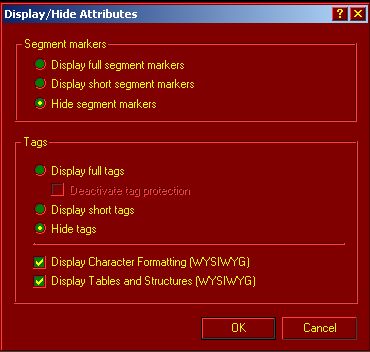
formatting codes. In this case, it would be advisable to go to View > Display/Hide
Attributes, and select Hide Segment Markers and Display Short Tags. Make sure you do NOT
erase the blue #, < > or other such characters.
You do not have to worry about formatting but only worry that you do not ERASE these.
Sometimes a word or phrase within your segment will be bold, italic, or with
some other formatting, in which case it will be surrounded with the blue < > markers. You should keep these where they are
(surrounding those words) when you reorganise your sentence while translating. However, it
is not super catastrophic if you make a mistake here, but the sentence, once exported, can
look like bold and italic. So simply try to be careful with this. Otherwise
you do not need to worry about any formatting issues.
Once you have completed the successful translation of that segment (your cursor should
still be within the segment and it should still be highlighted), press ALT INS (insert key
near the top right of your keyboard). This is extremely crucial, because it will mark that
segment as Translated and jump you to the next Untranslated or Partially Translated text
(or jump you to the Fuzzy Matches window if it is a repeat translation). If you are not
certain about your translation or simply cannot translate it because it is too hard for
you, do NOT press ALT INS but simply move your cursor to the next segment (and press ALT
ENTER in that new segment to start the process again). This will keep that segment marked
as Untranslated (you can see the segment’s status in the status bar at the bottom of
your monitor). You will not get paid for it and someone else who can handle that text can
later come back to it. If you want to go back to that segment after you finish your file,
you can go to the beginning of the file, then select Cursor > Next Untranslated text
(you will see the shortcut keys for this, and more is provided below for your
convenience).
But BEFORE you ALT INS a segment and leave it for good, you should proofread it NOW.
Otherwise, if you will want to proofread your translation after you complete the document,
you will not be able to distinguish your own translation from the previously translated
text, and end up wasting your time proofreading sections for which you will not get paid.
If you are not certain and want to proofread it later, simply do not ALT INS the segment
so that the program can automatically take you to those segments when you are ready to
proofread your document (at which time you should definitely ALT INS the segment, unless
you are still not certain and want to leave those segments for someone else).
However, if some Fuzzy
Matches were found for your segment, you will be taken to the Fuzzy
Matches window. You can resize this window how you like. The program will
always remember how you positioned your windows, and you can save your settings < for
future projects.
Once in the Fuzzy Matches window, you will see the original source, and the new source,
with some words coloured different ways (which you can adjust yourself <) to show you
the difference. You will see the Target New window, where your cursor should be. Make any
changes here. If the text is long and your Fuzzy Window cuts off some of the "Target
New" text, you can temporarily maximise that window in the usual Windows' way. Once
you are happy with your changes, press ALT ENTER, which should take you back to the Target
window. If you are happy with your translation, you can press ALT INS, or just jump to the
next segment.
Sometimes you may want to split up sentences or combine them, which may seem difficult if the sentences are individual and separate segments in the source document. Simply let a segment in the target file end on a comma or space, or put a period within a segment. The alignment does not have to be perfect but should be approximate. What is most important is that the text actually flows naturally in the target language. The segments will be lined up next to one another and the document proofread once imported back into Word etc.
When translating you notice a space at the end of the paragraph or sentence of the original text/segment, you should make sure to add the same at the end of the target segment.
While translating, make sure to manually save (CTRL S) your translation once in a while, as the program can get quirky, and we don't want you to lose your work. Otherwise, you can select Autosave under Options > Profile > Settings, but I prefer to manually save, in case an autosave tries to run at the same time as a fuzzy match search, forcing your computer to go berzerk, which sometimes happens in Windows.
If at any point you want to add some terms to the dictionary, select the word(s) in both the source and target windows and the select Edit > Transfer Marked Terms to Dictionary, but you should first find out from us what the procedures are for the particular project you are working on. For example, there might be a lead translator responsible for this, in which case you might be asked to send the dictionary list in a Word file for their approval. Other times, if you are working on the documents yourself, by adding words to the dictionary, we can automatically translate all those words for you after we import your file and before we prepare subsequent files for you, saving you lots of typing work.
If on the other hand you want to view the established dictionary terms while translating, there are several ways you can do this. Click here to view what your window may look like. This is according to window Setup choice < > , which you can set up here < . You will see the regular window of applicable dictionary terms (those which are present in the segment/sentence you are presently working on) at the bottom left. Terms in the dictionary are marked red. While in the target/translation window, if you have your cursor at the beginning of one of these red marked terms, as per the keyboard shortcut instructions below, you can press ALT T to automatically load the translated term, so that you do not have to type it out yourself. If for some reason you want to see the entire dictionary you can go to the Window menu and select "TermStar (Project Dictionaries)". The popup window shows this Dictionary window partially covering the target translation window but not covering the small and regular dictionary window to the bottom left (you can resize these windows as you wish). To navigate in the full dictionary window, press one of the letters and then use Page Up or Page Down on your keyboard.
Usually you should perform a
Once you are completed with a file and want to
To recap, or QUICK INSTRUCTIONS: (download free program
here) select File > Open > Language Pair to open one of your files in the project you downloaded. go to the beginning of the target window and press ALT ENTER press ALT ENTER to accept a translation in the Fuzzy Matches window, and ALT INS in the target window (to mark the segment as Translated). If you are not sure about the translation in the target window, do not press ALT INS but move to the next segment, and press ALT ENTER once there. save (CTRL S) your file frequently, so that you do not lose any of your work. when finished, select Project > Send and send us the created .txf file (NOT .pxf!!). |
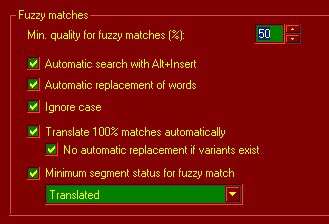
Setting Up the Program One thing we would advise is to set the Fuzzy criteria as shown on the right. Minimum quality of fuzzy matches set to 50%. In this Fuzzy Match window you will see that the similarity was 54%. If your Minimum Quality settings were set to the default 70% < , this window would not appear. You can see in this case that you saved yourself from typing out half of the text. You can experiment with these setting to get what works best for you. |
|
Changing your Work Environment - Making things More Pleasant
If you want to pretty up the program to make it a more comfortable environment to work in, you should find all the options through Options > Profile > Settings. In this area, you can make your text larger and more visible without affecting how it gets exported at the end. Or through the View menu, you can select Each Segment on New Line, or select Display/Hide Attributes to display or not display Character Formatting or Table Structures. You can even change the colouring of text and the background, and many things so that you can focus only on the actual text in a comfortable environment, and not concern yourself with formatting.
|
These are generally the setting we like to use under View
> Display/Hide Attributes. This way you can focus on the text and nothing else. NEVER deactivate tag protection if you click on "Display
full tags" because you may erase or change certain tags (formatting instructions) and
cause great problems on our processing end later. Some documents may have special formatting within sentences, for which reason having the Display Character Formatting checked allows you to see such formatting, to make sure your translated document is the same. The Display Tables and Structures is a personal choice, depending on the document. Sometimes it is good to see the table structures to help you understand the meaning and context of individual terms, while other times the table view may appear too cluttered for your liking. Note that these settings should be applied to both windows (original and translated document), for clarity. |
Some Tips
When translating, as when translating overtop of a Word document, we suggest you press ENTER at the start of a new segment and translate in the new empty line directly above the paragraph you are translating. Every time you translate a line or two in the segment, when your cursor is at the end of your newly translated section, you can press RIGHT ARROW, then hold down SHIFT while pressing the DOWN ARROW to select the number of lines you have already translated. Press DELETE to erase them and then LEFT ARROW to return you to the end of the section you are creating. In this way the line of sight between the text you are writing and the text you are reading always stays as close together as possible. Once you are done translating the segment (your segment should always end with a space), with the cursor at the end of your translated part of the segment, press ALT SHIFT RIGHT ARROW to select the rest of the segment and then press DELETE. You are now done with your segment and you can press ALT INS to mark it as Translated and jump to the next segment.
Sometimes you may have to write the same word over and over again. Which is tedious especially if it requires switching the keyboard to the source text. If it is a word or name which does not need to be translated, one method is to erase the source text of the segment until you reach that word, so that you can use it in your translation, pressing ENTER after the word and continuing in the manner explained in the paragraph above. But if the word or name is very frequent throughout the document, Autotext may prove useful. Autotext in Transit works the same as in Word, whereby you first select the text you want to create a shortcut for, and go to the menu Edit > Autotext. At the bottom of the new window you will see the text you have selected, in the top window you can put your shortcut (for example, for the text "I do not want to type this every time", you might choose the letter "I" as your shortcut, since it is the first letter of the text), and then press Add. Now you have programmed your shortcut, which you activate by pressing F3 after typing that shortcut (the letter "I" in our example). Note that your shortcut must always be followed by a space while the cursor directly follows the text for it to work properly. The Autotext can be an entire paragraph etc.
If you need to insert a special character, such as the currency symbol for Euro, go to the Menu and select Options > Character Picker.
If leaving comments for yourself or us according to our translation guidelines, instead of the "<" character, in Transit use the ^ character, as the < character is used by Transit and using it causes problems.
If the fuzzy matches offer a near duplication of something you previously translated
but plan to still proofread (which, in the free PE version, probably does not refer to the
same document you are presently translating), to save you from having to proofread
practically the exact same text over again, after pressing ALT ENTER to copy the previous
translation into the Target window, instead of pressing the usual ALT INS to mark that
segment as Translated, you might consider leaving it marked as Untranslated and just move
to the next segment using your down arrow or the appropriate shortcut key below. That way,
when you return to this same segment during your proofread later, the fuzzy match window
could offer the updated and proofread text. But then again, you will have to keep an eye
out to notice it is an Untranslated segment during your proofread. This issue is not
completely resolved by Transit and we are still trying to figure out a way how to avoid
having to proofread exactly repeating text.
If you are asked or yourself suggest that the above procedure can be applied to save
proofreading work by another translator later, we can arrange a special payment for such
"ignored" translations to make this extra measure worth your while. This
software can be used to reduce costs, in which case the savings can be distributed in such
a way so that translators using it will earn more per hour than if they were to translate
everything from scratch. Hence open communication is important to achieve maximum
efficiency and earnings for all concerned.
| "Ctrl" + "F" | Find |
| "Shift" + "F3" | Toggle Letter Case |
| "F3" | Autotext (explained in paragraph above) |
| "Ctrl" + "S" | Save File |
| "Ctrl" + "Z" | Undo |
| "Ctrl" + "G" | Go to |
| "Alt" + "B", "E" | Replace Translation |
| "Alt" + "Ins" | Mark Segment as Translated, go to Next Translatable Segment, Load Fuzzy Matching |
| "Ctrl" + "Alt" + "+" | Go to Next Translatable Segment |
| "Ctrl" + "Alt" + "-" | Go to Previously Translatable Segment |
| "Alt" + "left arrow" | Go to start of active segment (hold shift at the time to select the text at the same time) |
| "Alt" + "right arrow" | Go to the end of the active segment (hold shift to select the same) |
| "Alt" + "Enter" | Load Fuzzy Matching |
| "Alt" + "5" | View Associative Network (fuzzy matches) Window |
| "Alt" + "1" | Jump to Source file |
| "Alt" + "2" | Jump to Target file |
| "Alt" + "3" | Jump to dictionary window |
| "Alt" + "4" | Jump to scratchpad window |
| "Alt" + "P" | Toggle Tag Protection |
| "Alt" + "T" | Replace with First Term from Dictionary |
| "Alt" + "K", "A"-"Z" | Replace with Selected (A-Z) Term from Dictionary |
| "Alt" + "G", "A"-"Z" | Insert with Selected (A-Z) Term from Dictionary |
| More shortcuts can be found by going to the Help menu, choosing Index, and then type in Shortcut. | |
If you like, you can download more detailed instructions we have prepared for a large project in the past here. Or the website where you downloaded the PE version has lots of documentation to help you - even a video presentation.
Calculating Payment
Below is our payment information for the sample project you can download above. This one is calculated by the number of characters (normal for the Czech market), but usually the units would be in words.
File(s) |
Pretranslated |
Partially Translated |
100-95% |
94-85% |
84-75% |
74-50% |
Remaining not translated units |
Total |
m4454_03_10 |
566 |
23 |
0 |
1130 |
762 |
46 |
5980 |
8507 |
m4454_03_8 |
1314 |
0 |
0 |
506 |
2099 |
1352 |
13411 |
18682 |
m4454_03_9 |
1805 |
131 |
85 |
1244 |
1679 |
414 |
13155 |
18513 |
m4454_05_10 |
4370 |
137 |
0 |
1658 |
3530 |
1491 |
7438 |
18624 |
m4454_05_11 |
1374 |
0 |
0 |
511 |
1878 |
740 |
3812 |
8315 |
m4454_05_8 |
4715 |
148 |
0 |
2650 |
4583 |
1336 |
7287 |
20719 |
m4454_05_9 |
3033 |
0 |
0 |
1164 |
3963 |
1151 |
8018 |
17329 |
The "pretranslated" text is something the program would skip over
and which the translator would not even notice.
The 50-100% are referred to as Fuzzy Matches. When you get to a segment that has
been partially translated like this, you will be taken to the Fuzzy Matches window as
explained above.
The "remaining not translated units" require a full translation, as you are used
to.
For the different scenarios above, below is considered a generous pricing scheme in the industry. Imagine being offered a sentence which requires you to look at it, realise that it is correct (because the only difference is some number, which the program has correctly suggested), perhaps add one word, press a quick shortcut key and you get paid 30% of the entire sentence. You will certainly be making more money for your time than getting paid 100% for translating the entire sentence.
% of pretranslated text |
% of payment |
Remaining not translated units |
100 |
84% or less |
100 |
94-85% |
60 |
95% or more |
30 |
Pretranslated |
0 |
When you work on a file for us, this information will be copied into an Excel file, computing your final balance and later sent to you or posted online. Or if you would like to know this information in advance, you can download and use this one. Just copy in the word/unit number, punch in your price into the green cell, and everything should be computed for you automatically. Otherwise, in your free PE version you can also access Projects > Status, and you will find some information there, but it is not as extensive as the information we are using.
I
opened the
file and It seems to be straightforward. I have one question though, do I
just overwrite the text in the target window and keep highlighting and
overwriting or is there some kind of procedure like in tag editor where I move
through segments by some kind of keyboard shortcut?
Above
you will find some shortcut keys at the bottom. In short, I'd say I do the
following: When you are done translating a segment press ALT+INS(ert), which
marks that segment as Translated and jumps you to the next segment (highlighting
the corresponding source text in the upper window).
Now sometimes there are tags in the segment, like "hello, my name is <F>Bob<F>", or something like that, where "Bob" is supposed to be italicised, or formatted differently. You can also set things up so that you can see the formatting. If in your language the sentence structure is different, like "hello, Bob is my name", you just need to erase the "my name is" before and put it after (just make sure that the <F> tags remain around the word Bob). But a lot of times, when I refer to the original, I see that this is not necessary as the <F> tags were put in unnecessarily. So some discretion, for optimum productivity, can be useful. If there are no such tags in the segment or you deem them as unnecessary you can just blaze through them, either by writing overtop of the text in the target window (by activating the INSERT key), or I prefer to press the shortcut ALT+SHIFT+RIGHT ARROW KEY, which selects that entire segment to the end, such that once I start typing in my translation it erases it. Or sometimes it works to press ENTER at the beginning to break the segment into a second line, type in my translation so that I can see the source text closer (instead of having to look up to the upper window), then press ALT+SHIFT+RIGHT ARROW KEY to select the remaining source text, then DELETE to delete it, then ALT+INS to mark that segment as Translated and jump me to the next Untranslated segment. If by chance the alt+ins does not work on your laptop keyboard, I found www.autohotkey.com a nice solution and can put up the simple instructions for that if you need. I'd say that the only other important instructions concern how to set things up to make them easier for you, and the colouring. I've tried Trados and find this much faster to work in.
French to English Translations Translator
KENAX Translation Agency
| Email US
| Translation
Resources | Translator Sitemap
| Translation Services